Windows Slow? Best Settings To Speed It Up
Your Windows 11 machine is likely dragging because it is overloaded with background processes and aggressive power-saving settings that throttle your hardware. You can strip away the bloat and force your system to prioritize speed over aesthetics by adjusting a few core configurations.
Why this happens
Windows 11 defaults to a balanced power plan that throttles your CPU, while visual animations and unnecessary startup apps consume resources you need for daily tasks. This creates artificial latency that makes even fast hardware feel sluggish.
What you'll need
You will need administrative access to your PC to modify power plans and change system settings.
Steps
-
01Right-click your taskbar and select Task Manager, then click Startup Apps on the left sidebar.
-
02Review the Startup impact column, right-click any apps you do not need immediately upon booting, and select Disable.
-
03Press Windows+R, type
sysdm.cpl, and hit Enter to open System Properties. -
04Navigate to the Advanced tab, click Settings under Performance, and select Adjust for best performance.
-
05Check the box for Smooth edges of screen fonts to maintain readability, then click Apply.
-
06Press Windows+R, type
powercfg.cpl, and hit Enter to open Power Options. -
07Open an elevated Command Prompt by searching for CMD, right-clicking it, and selecting Run as administrator.
-
08Paste
powercfg -duplicatescheme e9a42b02-d5df-448d-aa00-03f14749eb61and hit Enter to unlock the Ultimate Performance plan. -
09Return to the Power Options window and select the new Ultimate Performance plan.
-
10Press Windows key, search for Storage Sense, and ensure the toggle is set to On to keep your C drive clean.
Still not working?
If your PC remains slow after these changes, your system drive may be nearing capacity or suffering from physical degradation. Check your Task Manager Performance tab to see if your Disk usage is stuck at 100%, which often indicates a failing drive or a corrupted Windows search index. If disk health is fine, consider a clean installation of Windows to remove deep-seated driver conflicts.
Frequently asked questions
Will disabling startup apps break my programs?
No, it simply prevents them from running automatically in the background when you turn on your computer. You can still open and use them manually whenever you need.
Is the Ultimate Performance plan safe for laptops?
It is safe, but it will cause your battery to drain significantly faster because it prevents the CPU from downclocking to save power. Use it primarily while plugged into a wall outlet.
Why does my desktop look different after changing visual effects?
Turning off animations removes the sliding and fading effects of menus and windows, which provides a snappier feel at the cost of the modern 'polished' look.
Subscribe for fast, no-fluff fixes and best settings guides
For the games, phones, and apps you actually use - every common error, crash, and "how do I…" answered in under three minutes.

League of Legends Best Settings For Low End PC

Meccha Chameleon Best Settings For Low End PC

League of Legends Best Settings For Beginners

Meccha Chameleon Best Settings For MAX FPS
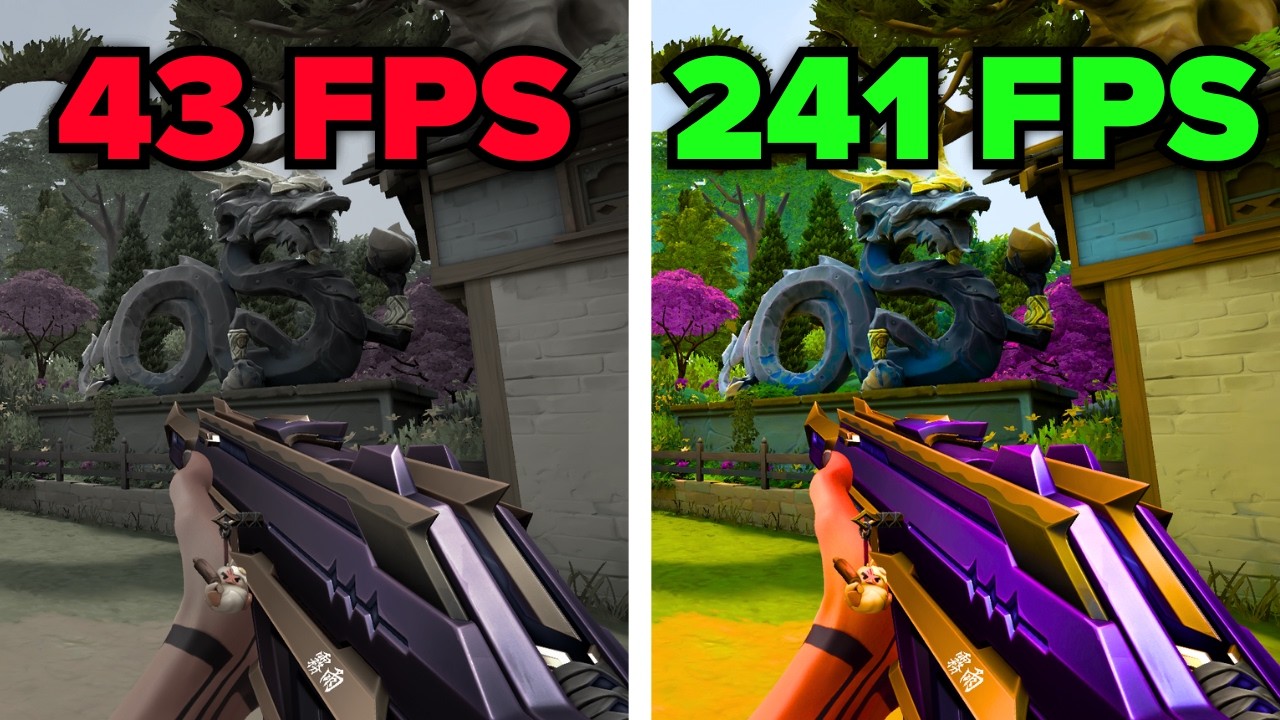
Valorant Best Settings For MAX FPS
