Hytale Best Settings For MAX FPS On PC
Hytale is heavily CPU-bound, which often leads to frame drops even on capable hardware. These settings prioritize offloading the work from your processor to your GPU, helping you achieve a smoother, more consistent framerate without sacrificing too much visual fidelity.
Why this happens
Hytale relies heavily on your CPU to process game logic, causing frame rate stutters when graphics settings force the processor to work too hard. By lowering CPU-intensive features like shadows and particle quality, you allow your system to process frames more efficiently.
Steps
-
01Navigate to your graphics options menu and set the Graphics Preset to 'Low', then manually adjust the individual settings listed below.
-
02Set View Distance to '256' to maintain visibility while preventing excessive CPU overhead.
-
03Keep Render Scale at '100' to avoid blurriness, and set World Detail to 'High' to leverage your GPU instead of the CPU.
-
04Select 'FXAA' for Anti-aliasing to smooth edges without a significant performance penalty.
-
05Set Shadow Quality to 'Low' and Particle Quality to the 'Lowest' available option, as both significantly tax the processor.
-
06Set Shading Quality to 'Medium' and Depth Buffer Precision to 'High' to maintain visual quality without hurting your frame rate.
-
07Turn 'Bloom' off to remove unnecessary post-processing glow, and leave 'Foliage Fading' on to prevent flickering.
-
08Enable 'Fullscreen' mode to minimize input lag and set your FPS Limit to 'Unlimited', or match it to your monitor's refresh rate if you experience screen tearing.
Still not working?
If your frame rate remains low after these adjustments, monitor your CPU and GPU usage while playing to identify a potential bottleneck. If the CPU is hitting 100% load, consider closing background applications like web browsers or recording software that compete for processing power.
Frequently asked questions
Will these settings make the game look bad?
Not necessarily. By keeping settings like World Detail and Shading Quality at medium or high, you preserve the core look of the game while only sacrificing heavy post-processing effects like bloom.
Should I cap my FPS?
If your CPU usage is too high, capping your FPS to your monitor's refresh rate (e.g., 144Hz) can actually improve stability and keep your system cooler by preventing the hardware from working unnecessarily.
Subscribe for fast, no-fluff fixes and best settings guides
For the games, phones, and apps you actually use - every common error, crash, and "how do I…" answered in under three minutes.

League of Legends Best Settings For Low End PC

Meccha Chameleon Best Settings For Low End PC

League of Legends Best Settings For Beginners

Meccha Chameleon Best Settings For MAX FPS
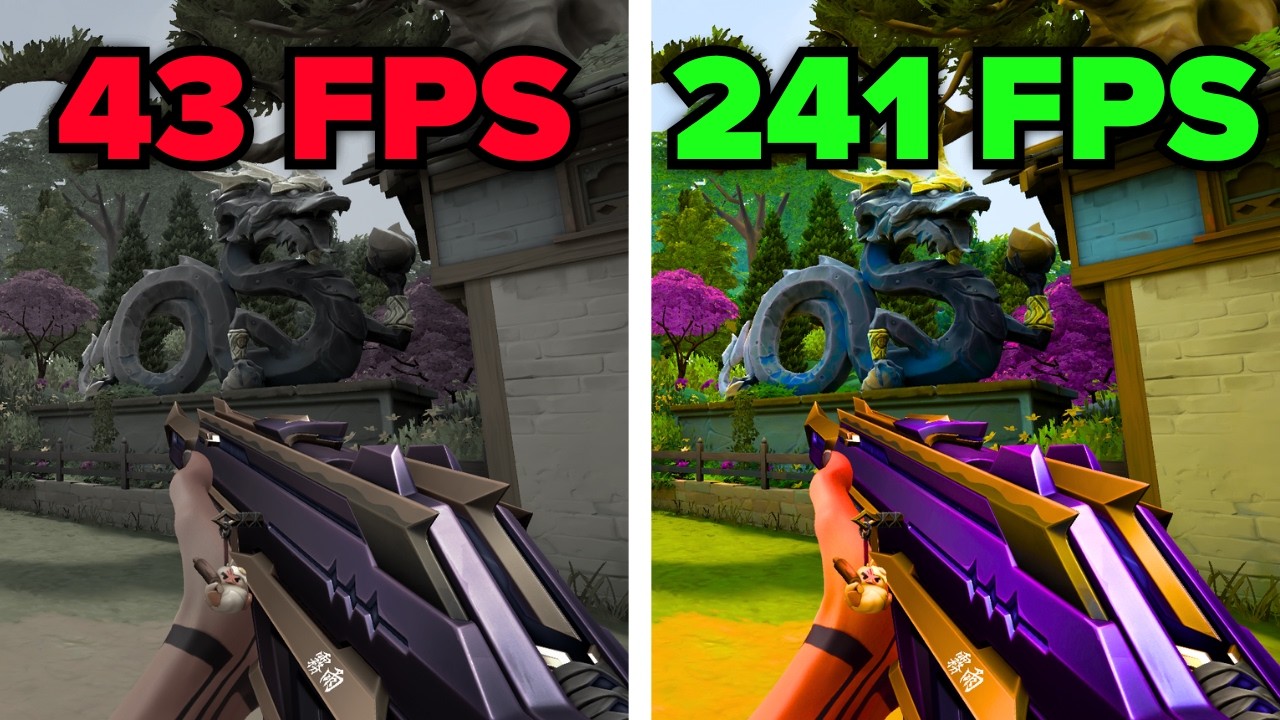
Valorant Best Settings For MAX FPS
