How To Speed Up Windows 11 - Best Settings
If your Windows 11 machine is stuttering, taking forever to boot, or feels like it is dragging through mud, you are not imagining it. Windows often prioritizes background processes and power-saving features that choke your CPU and memory. You can get that responsiveness back by stripping away the unnecessary bloat that is bogging down your system.
Why this happens
Windows 11 defaults to settings designed for power efficiency rather than raw speed, and many third-party apps automatically set themselves to launch at startup. These background processes and visual animations drain your available resources, creating input lag and slow boot times.
What you will need
You will need administrative access to your PC to modify system power plans and startup items. No extra software downloads are required.
Steps
-
01Open Task Manager by pressing Ctrl+Shift+Esc, then click the 'Startup apps' tab. Right-click any app with a 'High' startup impact that you do not need immediately upon boot and select 'Disable' to stop it from slowing down your startup process.
-
02Press Win+R, type 'sysdm.cpl', and hit Enter. Go to the 'Advanced' tab, click 'Settings' under 'Performance', select 'Adjust for best performance', re-check 'Smooth edges of screen fonts' for readability, and click 'OK' to remove lag-inducing animations.
-
03Open an elevated Command Prompt as administrator, type 'powercfg -duplicatescheme e9a42b02-d5df-448d-aa00-03f14749eb61', and press Enter to unlock the hidden Ultimate Performance power plan. You can now select this plan by running 'powercfg.cpl' and choosing it from the additional plans list.
-
04Press Win+R, type 'cleanmgr', and hit Enter to open Disk Cleanup. Select your C:/ drive, check the boxes for temporary files and cache, and click 'OK' to free up storage overhead that can hinder drive performance.
-
05Go to Settings > System > Storage and ensure 'Storage Sense' is toggled 'On'. This automatically manages temporary files so your drive does not become cluttered over time.
Still not working?
If your computer is still sluggish, open Task Manager and look at the 'CPU' and 'Memory' tabs to see if a specific process is constantly hitting 100% usage. If disk usage is consistently high, check your drive health using a tool like CrystalDiskInfo, as a failing SSD or HDD is often the true cause of persistent system-wide lag.
Frequently asked questions
Will disabling startup apps break my programs?
No, it only prevents them from launching automatically when you turn on your computer. You can still open your apps normally whenever you need them.
Is the Ultimate Performance power plan safe for laptops?
It is safe, but it will cause your battery to drain much faster and potentially increase heat. Use it primarily when your laptop is plugged into a power source.
Will turning off visual effects make Windows look ugly?
Your icons and windows will lose their fading animations, which may look slightly more 'basic'. However, the boost in snappy interaction speed is usually worth the trade-off for performance.
Subscribe for fast, no-fluff fixes and best settings guides
For the games, phones, and apps you actually use - every common error, crash, and "how do I…" answered in under three minutes.

Far Far West Best Graphics Settings Guide
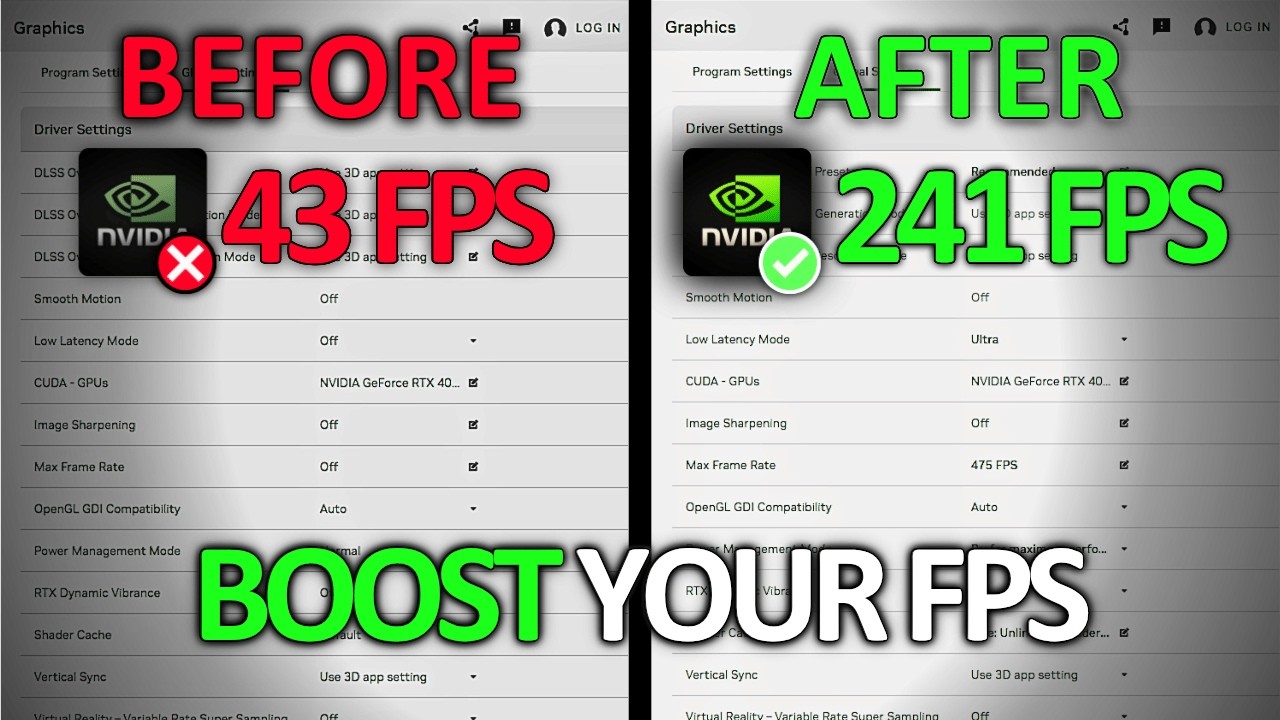
Nvidia App Best Settings For MAX FPS
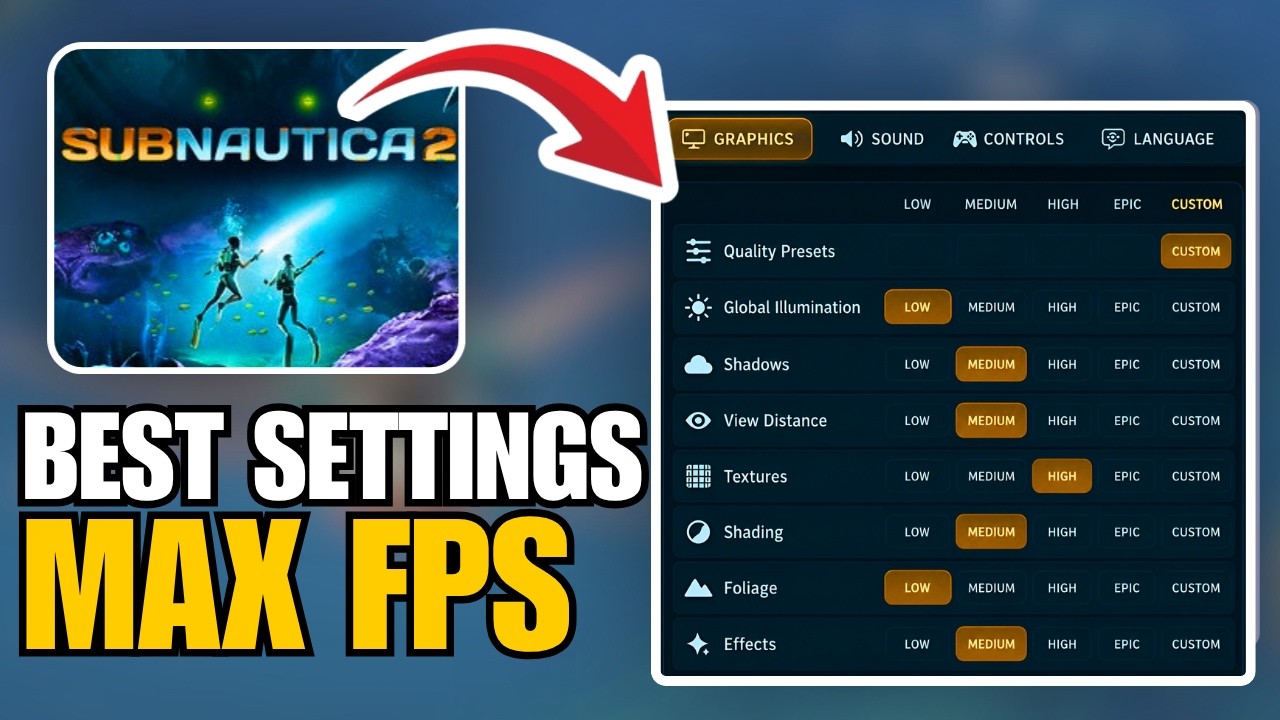
Subnautica 2 - Best Settings Guide (Graphics + FPS) - 2026

Far Far West - Best Settings Guide (Graphics + FPS) - 2026

Ghost of Tsushima Best Settings For MAX FPS
